How to Program an NFC Tag With Your Google Review Link
Key facts
- What you write
- One NDEF URL record containing your Google review link
- Chip to buy
- NFC Forum Type 2, e.g. NTAG213 with 144 bytes of user memory
- Android
- Write with a free app; NFC must be on in Settings
- iPhone
- Writing needs iPhone 7 or later on iOS 13 or later
- Locking
- Optional and permanent; test the tag first
A blank NFC tag, a phone and a free writing app are all you need to turn a tap into a Google review. Here is the exact process, the chip to buy and the mistakes to avoid.
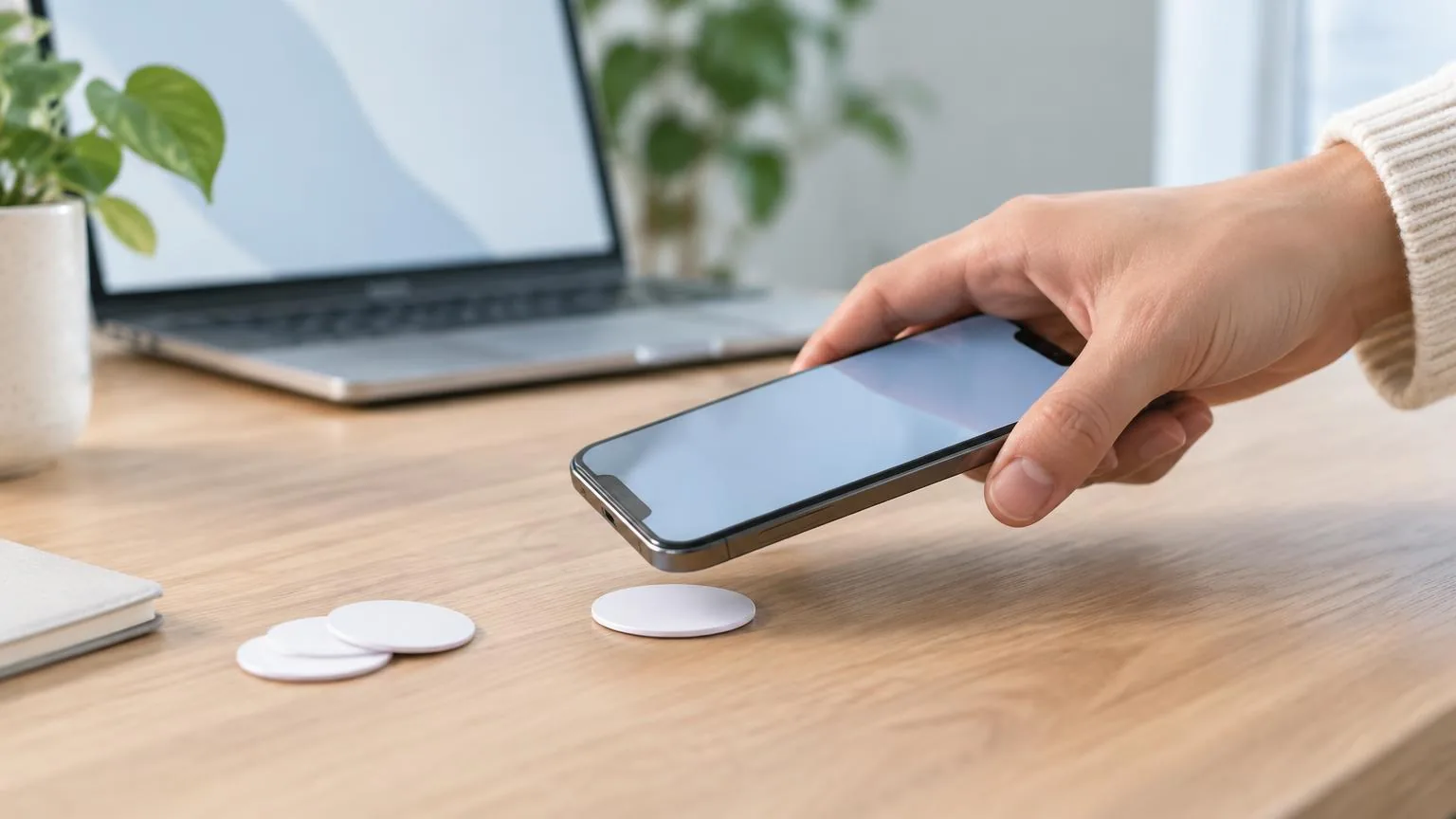
To program an NFC tag with your Google review link, copy the link from your Google Business Profile, open a free NFC writing app such as NFC Tools, add a URL record, paste the link and hold the blank tag against your phone until the app confirms the write. The whole job takes about a minute per tag once you have the right link and a compatible chip.
What do you need to program an NFC tag for Google reviews?
You need four things: your review link, a blank writable NFC tag, a phone with NFC, and a writing app. Nothing else is required, and no account or subscription is involved in writing a tag yourself.
- Your Google review link. Copy it from your Business Profile (Read reviews → Get more reviews) or build it from your Place ID. Our guide to finding your Google review link covers both routes.
- A blank NFC tag or sticker that follows the NFC Forum Type 2 specification. The NTAG213, NTAG215 and NTAG216 chips from NXP are the common choices and work with both Android and iPhone.
- A phone with NFC. Most Android phones sold in recent years have it; on iPhone, writing tags requires an iPhone 7 or later running iOS 13 or later.
- A writing app. NFC Tools (free, Android and iOS) is the one most guides use, and the steps below follow its menus. Other apps follow the same pattern: choose a record type, enter the data, write.
Which NFC chip should you buy for a review link?
An NTAG213 is enough. A Google review link is a short web address, and the NDEF record that carries it is far smaller than the 144 bytes of user memory on an NTAG213. You only need the larger NTAG215 or NTAG216 if you plan to store several records on one tag, such as a review link plus a contact card.
| Chip | User memory | Fits a review link? | Typical use |
|---|---|---|---|
| NTAG213 | 144 bytes | Yes | Single URL: review link, website, menu |
| NTAG215 | 504 bytes | Yes | Several records, contact cards, Wi-Fi details |
| NTAG216 | 888 bytes | Yes | Larger payloads and multiple records |
NXP states that all three are NFC Forum Type 2 tags with an operating distance of up to 100 mm depending on the antenna and field strength, 10 years of data retention and 100,000 write cycles. In practice a phone has to be within a few centimeters, and the smaller the antenna in the tag, the closer the phone needs to be. Look for round or square tags of at least 25 mm if customers will be tapping them unassisted.
Buy "NFC" tags, not generic "RFID" tags. Low-frequency RFID tags used for access fobs run at a different frequency and cannot be read by a phone. The chip name (NTAG213, 215 or 216) on the listing is the easiest sign you have the right type.
How do you get the right link before you write anything?
Copy the link from your Business Profile and test it in a private browser window first. The short g.page/r/…/review link Google hands out and the longer search.google.com/local/writereview?placeid=… link both open the same review form, and both fit on an NTAG213. Google's own help page confirms that asking customers to visit a link or scan a QR code is a permitted way to request reviews; offering anything in return is not.
Use the direct link, not a link shortener you do not control. If a third-party shortener changes its terms or shuts down, every tag you have written goes dead, and you will have to rewrite or replace them all.
How do you write the link to an NFC tag on Android?
Open Settings and make sure NFC is turned on. Android looks for tags only while the screen is unlocked and NFC is enabled.
Install and open NFC Tools, then choose Write.
Tap Add a record and select URL / URI. Do not pick Custom URL; the standard URL record is what both platforms recognize.
Paste your review link, including https://, and confirm.
Tap Write / X bytes. The byte count shown should be well under 144 for a single review link.
Hold the blank tag flat against the back of the phone. On most Android phones the antenna sits in the upper or middle part of the back. Keep still until the app reports that the write succeeded.
Move the phone away, then bring it back to the tag. The link should open or a notification should appear, depending on your Android version.
The way Android handles web links on tags has recently changed. According to Google's Android developer documentation, from Android 16 a tag containing an http or https link triggers a standard view intent, and from Android 17 the phone shows an "open link" notification that the user has to tap. Either way the customer ends up on your review form without installing anything.
How do you write the link to an NFC tag on iPhone?
Check your model. Apple's Core NFC framework lets apps write to NDEF tags on iPhone 7 and later running iOS 13 or later.
Install and open NFC Tools, then choose Write.
Tap Add a record, select URL / URI, paste your review link and confirm.
Tap Write. A system sheet appears asking you to hold the iPhone near the tag.
Touch the top edge of the iPhone, near the cameras, to the tag. That is where the NFC antenna is. Hold it there until you feel the haptic tap and see the confirmation.
Lock the screen, unlock it again and hold the top of the phone to the tag once more to confirm it reads back correctly.
Reading is a separate question from writing. Apple's documentation states that iPhone XS and later support background tag reading, which means the phone scans tags whenever it is in use and shows a notification banner with no app open. Apple's support guide lists iPhone 7, 7 Plus, 8, 8 Plus and X as models that can read tags only through the NFC Tag Reader control in Control Center. Keep this in mind when you test: an older iPhone that does nothing on a tap is not proof that your tag is faulty.
Should you lock the NFC tag after writing it?
Lock it only once you have tested it and are sure the link will not change. Locking sets the tag to read-only permanently; there is no undo. For a tag stuck to a counter in a public place that is a reasonable precaution, because anyone with a phone could otherwise overwrite it with their own link. For a tag you keep behind the counter or hand to staff, leaving it unlocked lets you rewrite it if your profile ever changes.
NTAG chips also offer 32-bit password protection as an alternative to a permanent lock. Some writing apps expose this as a "set password" or "protect" option. It stops casual overwriting while still letting you update the tag later, but you must keep the password somewhere safe, because losing it leaves the tag effectively locked.
Write, test on at least two phones, and only then lock. A locked tag with a typo in the link, or pointing at a duplicate listing, cannot be fixed and has to be thrown away.
How do you test the tag before customers use it?
Tap the tag with an iPhone XS or later with the screen on. A banner should appear; tapping it should open your review form in Safari.
Tap the tag with an Android phone. Depending on the version, the link opens directly or an "open link" notification appears.
On the form that opens, check the business name and address. A link built from the wrong Place ID will open a competitor's or a duplicate listing's form.
Sign out of Google on one phone and tap again. The customer should be prompted to sign in, then land on the form, because Google requires a Google Account to post a review.
If the tag will live on a surface, stick it down first and test again. Metal underneath a tag can stop it reading entirely.
Why is the NFC tag not opening the review link?
- NFC is turned off. On Android it is a setting; on iPhone 7 to X the NFC Tag Reader control has to be opened manually.
- The phone is in the wrong position. iPhones read from the top edge; most Android phones read from the upper back. Move slowly across the tag rather than pressing harder.
- The screen is locked or the phone is busy. Apple's documentation lists times when background reading is unavailable, including when the camera is open, Apple Pay is in use or Airplane Mode is on.
- The tag is on metal or inside a thick case. Both shorten the working distance; use an on-metal tag or a stand that lifts the tag off the surface.
- The record type is wrong. A plain text record or a Custom URL record does not trigger the link behaviour. Rewrite the tag using the standard URL / URI record.
- The link is incomplete. If it was pasted without https:// or was cut off, the phone may open a search page or nothing at all. Copy the link again from your Business Profile.
- The tag is already locked. If the app reports that the tag is read-only and you did not lock it, the supplier did. You need a new tag.
When is a pre-programmed review card the easier option?
Programming your own tags makes sense for one or two counters. It becomes a chore when you need tags for several locations, want them in a durable card or stand rather than a bare sticker, or want a printed QR code on the same item for customers whose phones do not read NFC.
A Google Review Card arrives with the NFC chip already written with your review link and an optional printed QR code as the fallback, for a one-off price with no subscription and tracked delivery. The same link also goes on counter stands, wall plaques, window stickers, keychains and wristbands, which our stand vs plaque vs sticker comparison walks through. If you do order one, our tap tag setup guide explains how to test it when it arrives, and our comparison of NFC and QR review cards explains why having both on one item is useful.
Whichever route you take, the rules are the same as for any review link. Ask every customer the same way, never attach a discount or gift to the tap, and let the customer choose their own rating. Our Google review policy guide and the rest of the review links and QR codes hub cover the details.
❓ Frequently asked questions
Can I reprogram an NFC tag after writing my review link to it?
Yes, as long as you did not lock it. Writing a new URL record replaces the old one. A tag that has been set to read-only cannot be changed and has to be replaced.
Does a Google review link fit on an NTAG213?
Yes. Both the short g.page review link and the longer Place ID link are small web addresses, and an NTAG213 has 144 bytes of user memory for the record. The writing app shows the byte count before you write.
Do customers need an app to open the link from the tag?
No. iPhone XS and later read tags in the background and show a banner; Android phones with NFC switched on open the link or show an open-link notification. Older iPhones (7 to X) need the NFC Tag Reader control in Control Center.
Can I write NFC tags with any iPhone?
Writing works on iPhone 7 and later running iOS 13 or later, through an app that uses Apple's Core NFC framework. Earlier iPhones cannot write tags at all.
Is it allowed to use an NFC tag to ask for Google reviews?
Yes. Google's Business Profile help says businesses may ask customers to visit a link or scan a code to leave a review. What is not allowed is offering anything in exchange, or only asking the customers you expect to be positive.
Sources
- Apple Developer Documentation: Core NFC
- Apple Developer Documentation: Adding Support for Background Tag Reading
- Apple Support: Models that support NFC Tag Reader
- Android Developers: NFC basics
- NXP Semiconductors: NTAG 213/215/216 product page
- Wakdev (NFC Tools): How to write a link (URL) on an NFC chip
- Google Business Profile Help: Get reviews on Google
Related articles
How to Find Your Google Review Link (and Share It Properly)
Your Google review link opens the review form for your business in one click. Here is where to get it, how to build it by hand, and how to check it works.
Google Review Tap Tag Setup Instructions: Step-by-Step Guide
How to set up an NFC Google review tap tag: find your review link before ordering, test the tap and the QR backup when it arrives, place it well, and fix the most common issues.
Google Review QR Code: How to Make, Print and Test One
A Google review QR code takes customers straight to your review form. Here is how to make one for free, how big to print it, and how to test it first.