Google Review QR Code: How to Make, Print and Test One
Key facts
- Cost
- Free from your Google Business Profile
- Where to make it
- A computer browser only, not the mobile app
- Path
- Read reviews → Get more reviews → right-click QR code → Save image as…
- Quiet zone
- A blank margin four modules wide on every side
- Not allowed
- Incentives for reviews or asking only happy customers
A Google review QR code takes customers straight to your review form. Here is how to make one for free, how big to print it, and how to test it first.
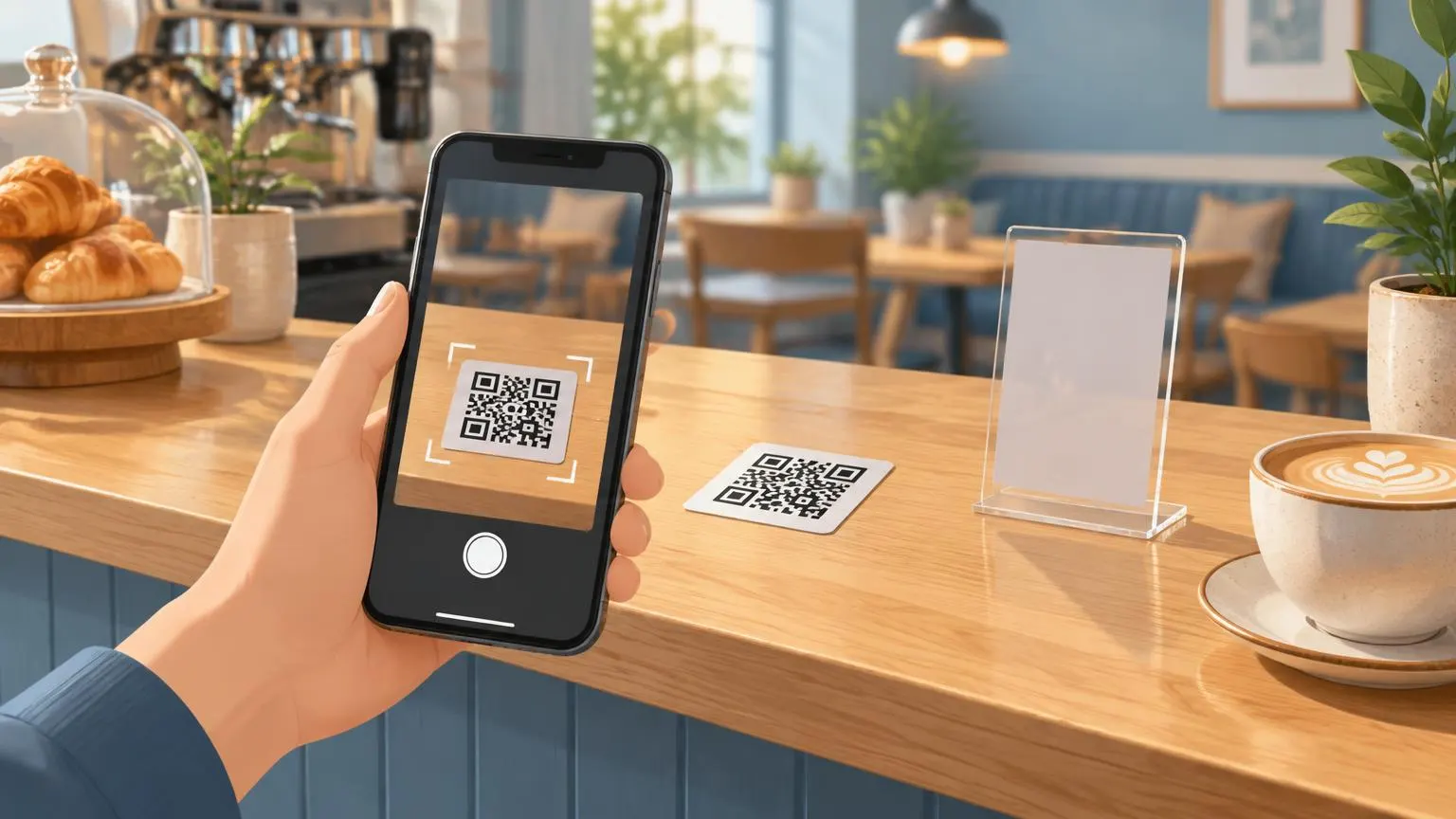
A Google review QR code is a printable code that opens the review form for your business when a customer points their phone camera at it. You can make one free in about a minute: open your Google Business Profile on a computer, choose Read reviews, then Get more reviews, and save the QR code image Google shows you.
Getting the code is the easy part. Most problems come later, when it is printed too small, placed on a busy background or pointed at the wrong listing. This guide covers making the code, sizing and printing it, testing it, and where to put it. If you only need the link itself, start with our guide to finding your Google review link.
What is a Google review QR code?
It is a standard QR code that stores your Google review link. When someone scans it, their phone opens the link and shows the star rating and comment box for your Business Profile, so they do not have to search for you on Google Maps first.
The code itself does nothing clever. It is just a shortcut to a web address. The customer still chooses their own rating, writes their own words and posts from their own Google Account. Google's own help page for businesses says you can ask customers to visit a Google link or scan a QR code to leave a review.
How do I make a Google review QR code for free?
Use the QR code Google generates inside your Business Profile. It is free and it always points at the right listing. Google states that review QR codes can currently be generated on a computer browser only, not on mobile devices.
On a computer, sign in to the Google Account that owns or manages your Business Profile.
Search for your business name on Google, or go to business.google.com, so the profile management panel appears.
Select Read reviews, then Get more reviews.
Right-click the QR code and choose Save image as… to download it.
Scan the saved image from your screen with your phone to confirm it opens your own review form.
If you do not see Get more reviews, you are probably signed in to the wrong account or the profile is not verified. An agency without manager access can build the review link from the Place ID instead and paste it into any QR code generator.
Should I use Google's QR code or a QR code generator?
For most businesses, Google's own code is enough. A third-party generator is useful when you need a vector file for large prints or a different file format. Be careful with dynamic codes from subscription services.
| Google's built-in code | Free static generator | Dynamic (redirect) code | |
|---|---|---|---|
| Cost | Free | Usually free | Often a paid plan |
| What it encodes | Your review link from Google | The link you paste in | The provider's short link, which redirects to yours |
| File types | Image saved from the browser | Often PNG and SVG | Often PNG, SVG and PDF |
| Can you change the target later? | No, reprint if the link changes | No, reprint if the link changes | Yes, while the provider keeps the redirect active |
| Main risk | Low-resolution image if enlarged a lot | Pasting the wrong link | Code stops working if the account or service ends |
A dynamic code depends on someone else's server. If you cancel the plan or the service closes, every printed copy can stop working. For a review link that rarely changes, a static code is the safer choice.
What size should a printed Google review QR code be?
Print guides commonly recommend at least 0.8 inch (about 2 cm) across for a code that is held in the hand or sits on a counter, and larger for anything read from further away, such as a window or wall. Size is only half of it: the margin, contrast and print quality matter just as much.
- Leave a quiet zone. Denso Wave, the company that invented the QR code, says a QR code needs a blank margin four modules wide on all sides. A module is one of the small black or white squares.
- Keep the link short. More data means more modules, so the same code gets denser. Google's short review link makes a simpler code than a long Place ID link.
- Use dark modules on a light background. Do not place the code over a photo, a pattern or a reflective finish.
- Pick an error correction level that suits the spot. QR codes can recover from about 7% (level L), 15% (M), 25% (Q) or 30% (H) damage. Denso Wave notes that M is the most common choice and that Q or H suit dirty environments, so a code near a kitchen or workshop benefits from Q or H.
- Export a vector file (SVG or PDF) or a high-resolution PNG for print, so the edges stay sharp.
| Placement | How it is scanned | What to check |
|---|---|---|
| Receipt or business card | In the hand, close up | At least 0.8 in (2 cm) wide, quiet zone clear of text |
| Counter stand or table card | From arm's length | Go larger than the minimum and keep it at eye level |
| Door or window sticker | From further away, often through glass | Size up and test through the glass, inside and out |
| Poster or wall sign | From across a room | Scale up with viewing distance and test from where people stand |
There is no single correct size. The only reliable check is a test print scanned from the real distance, in the real light.
How do I test a Google review QR code before printing?
Test on at least one iPhone and one Android phone, from the distance customers will stand, before you order a full print run.
Print one copy at the final size on the final material, or as close as you can.
Scan it with an iPhone camera. Apple says you open the Camera app, hold the phone so the code appears, then tap the link. You can also use the Scan Code control in Control Center.
Scan it with an Android phone using the built-in camera or Google Lens.
Check the page that opens is the review form for your business, with the correct name and address.
Repeat in the actual spot: under the shop lights, through the window glass, or at the table.
Where should I put my Google review QR code?
Put it where the customer pauses at the end of the visit, with a free hand and a reason to look down. Common spots are:
- The counter or checkout, on a small stand or sticker next to the card reader.
- Tables in a cafe or restaurant, where people wait for the check.
- Receipts, invoices and the packing slip in an online order.
- Waiting areas in clinics, salons and garages.
- The inside of a front door or window, for people leaving.
Our guide to where to place Google review stickers goes through each spot in more detail. If you would rather not print and laminate your own, Google review stickers are available with an NFC chip plus an optional printed QR code, pre-programmed with your Google review link, for a one-off price with no subscription.
What are the rules for using a Google review QR code?
Sharing your review QR code is allowed. What you say next to it is where businesses get into trouble. Google's Maps user-contributed content policy prohibits offering payment, discounts or free goods in exchange for a review, discouraging negative reviews, and selectively asking only happy customers.
- Do not print "Scan for 10% off" or "Review us for a free coffee" next to the code.
- Show the code to every customer, not only the ones you think will leave five stars. Our guide to review gating explains why.
- Do not set staff quotas for reviews or ask for reviews that name a particular employee. Google's policy lists both as prohibited.
- Keep the wording neutral, such as "Tell us how we did" or "Leave us a Google review".
For more on what Google allows, see are review cards allowed by Google and the full Google review links and QR codes topic hub.
Is a QR code or NFC better for Google reviews?
Neither is better in every situation. A QR code works on almost any modern phone camera and costs nothing to print. NFC lets the customer tap their phone instead of lining up a scan, which can be quicker at a busy counter, but it needs an NFC chip in the card, stand or sticker.
Many businesses use both on the same item, so customers can tap or scan. Our comparison of NFC and QR review cards covers the trade-offs in more depth.
Why is my Google review QR code not working?
- It will not scan: the code is too small, the quiet zone is crowded, the contrast is low or the print is blurry. Reprint larger, with a clear margin, from a vector file.
- It opens the wrong business: the link came from a duplicate or similarly named listing. Download the code again from your verified profile.
- It opens Google Maps but no review box: the customer is not signed in to a Google Account. Google requires one to post a review.
- It used to work and now does not: the profile may have been merged, moved or suspended, or a dynamic code's subscription may have lapsed. Get a fresh link and reprint.
Re-scan your printed codes every few months and after any change to your Business Profile. A printed code keeps pointing at the same address until you replace it.
❓ Frequently asked questions
Is a Google review QR code free?
Yes. Google generates it free from your Business Profile on a computer browser. You only pay if you choose a printed product or a paid QR service.
Can I make a Google review QR code on my phone?
Not from Google directly at the moment. Google says review QR codes can only be generated on a computer browser, although you can copy your review link on mobile and paste it into a QR generator.
Do Google review QR codes expire?
A static code does not expire, because the link is stored in the pattern itself. It stops working only if the review link stops working. A dynamic code can stop working if the provider's service or your subscription ends.
How small can I print a Google review QR code?
Print guides commonly suggest at least 0.8 inch (about 2 cm) across for a code held in the hand, with a blank margin around it. Print larger for anything scanned from further away and always test a sample first.
Can I put a discount next to my review QR code?
No. Google's policy prohibits offering discounts, free items or payment in exchange for a review. Use neutral wording and show the code to every customer.
Sources
- Google Business Profile Help: Create a link or QR code to request reviews
- Google Business Profile Help: Get reviews on Google
- Google Maps user-contributed content policy
- Denso Wave QRcode.com: Error correction feature
- Denso Wave QRcode.com: Information capacity and versions
- Denso Wave QRcode.com: How to make QR Code symbols (quiet zone)
- Apple Support: Scan a QR code with your iPhone or iPad
- 4OVER4: How to make a Google review QR code for print
Related articles
How to Find Your Google Review Link (and Share It Properly)
Your Google review link opens the review form for your business in one click. Here is where to get it, how to build it by hand, and how to check it works.
QR Code Review Cards: Do They Really Increase Reviews?
QR review cards can help — under the right conditions. Here's an honest look at when they work well and when they fall flat.
NFC Review Cards vs QR Review Cards – Which Gets More Reviews?
How an NFC tap compares with a QR scan for collecting Google reviews — and why many businesses use both on the same card.