Google Review Tap Tag Setup Instructions: Step-by-Step Guide
Key facts
- What it is
- Setup walkthrough for an NFC Google review card or tag
- Pre-programmed
- Arrives already encoded with the Google review link you supply
- What you do
- Unbox, tap, scan the QR code if printed, then place it
- Backup
- An optional printed QR code works with any phone camera
- Where the link comes from
- Your Google Business Profile's 'Get more reviews' option
How to set up an NFC Google review tap tag: find your review link before ordering, test the tap and the QR backup when it arrives, place it well, and fix the most common issues.
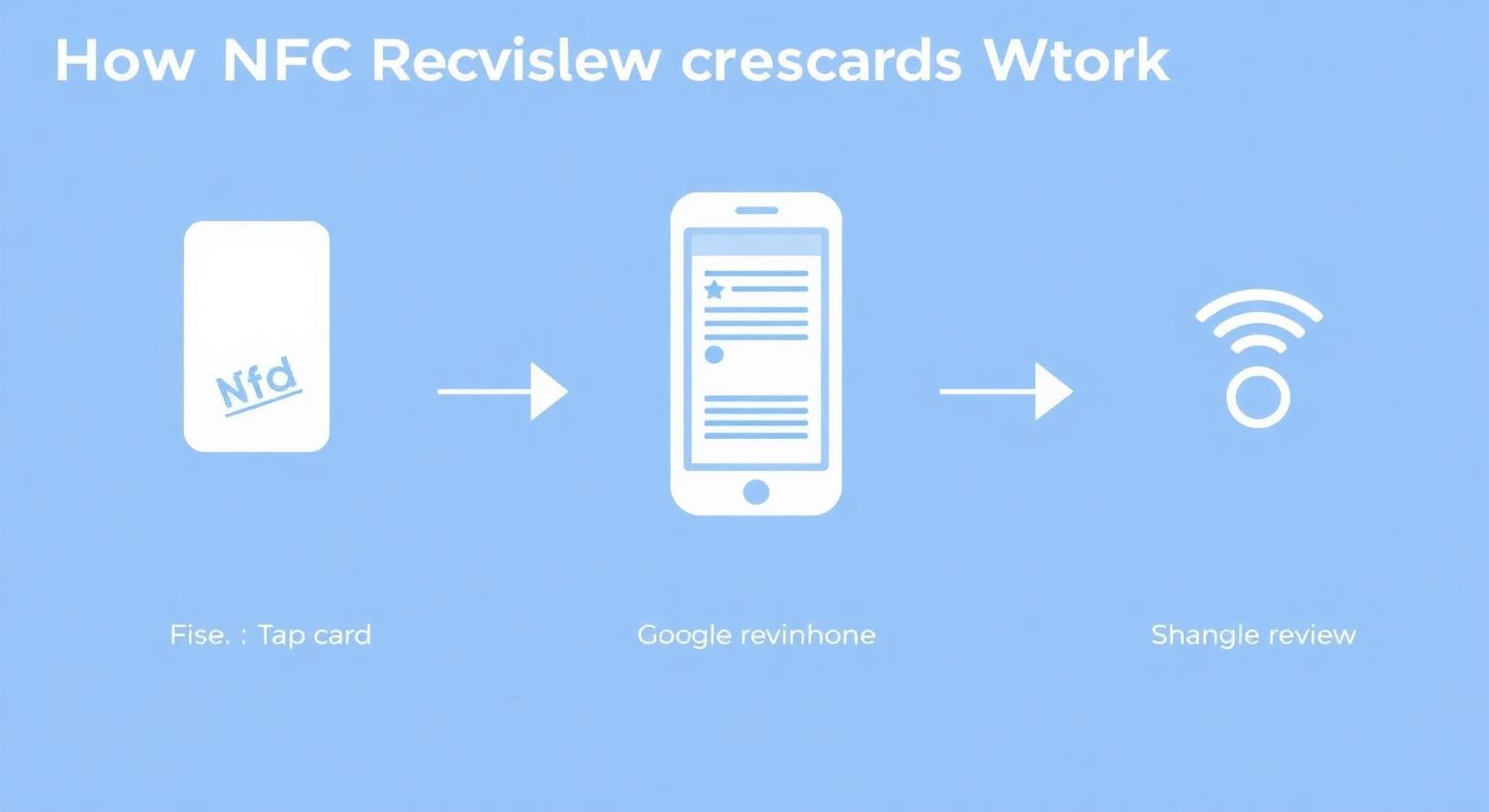
You set up an NFC Google review tap tag by testing it and then placing it where customers naturally pause after their visit. There's nothing to program yourself: it arrives pre-loaded with the Google review link you gave us at checkout. Tap it with a phone to confirm your review page opens, scan the printed QR code if your tag has one, then put it at your counter, reception desk or bill folder. The rest of this guide covers each step and the handful of issues that trip up first-time users.
What Comes in the Box?
You receive the product you ordered, already programmed with your Google review link.
- A credit-card-size PVC card (or the stand, plaque, sticker, keychain or wristband you chose) with a passive NFC chip, pre-programmed with the Google review link you supplied at checkout
- A printed QR code on the product if you chose that option, pointing to the same review link
- Your business name printed on it if you chose that option, or an unbranded design if you preferred
How Do You Find Your Google Review Link Before Ordering?
You get your review link from your Google Business Profile and give it to us at checkout. Our guide on how to find your Google review link covers this in more detail.
Sign in to the Google Account that manages your Business Profile.
Open your Business Profile (search for your business name on Google or open Google Maps).
Choose 'Read reviews', then 'Get more reviews'. Some versions of the profile show this as 'Ask for reviews'.
Copy the short link Google shows and give us that link at checkout.
If your Business Profile isn't verified yet, the option to share a review link may not appear. Finish verification first, then come back for your link. Source: Google Business Profile Help.
How Does the Tag Work Once It Arrives?
When a phone taps the tag, it opens the review link you supplied at checkout. There's nothing to write to the chip yourself. If you later need it to point somewhere else, such as a new location or a different Business Profile, that's what the optional editable-link add-on is for.
What's the Difference Between the Editable-Link Add-On and a Standard Tag?
The editable-link add-on lets you change where the tag points later without reprinting; a standard tag stays fixed to the link it was programmed with.
- With the editable-link add-on: the destination can be changed later, so a new review link doesn't mean new hardware.
- Without the add-on: the tag stays linked to the review link you gave at checkout. To change it, you'd order a new one.
How Do You Test the NFC Tap?
Hold your phone against the tag for a moment and check that your Google review page opens.
On Android, make sure NFC is switched on in Settings (often under Connected devices or Connections).
On iPhone XS, XS Max, XR and later, the phone reads NFC tags in the background, so no setup is needed. On iPhone 7 to iPhone X, open Control Centre and tap the NFC tag reader first (iOS 14 or later).
Hold the top of the phone (iPhone) or the middle of the back (most Android phones) against the centre of the tag.
Tap the notification that appears to open your Google review page.
Confirm it's your own listing and that the star selector is showing.
How Do You Test the QR Code Backup?
If your tag has a printed QR code, scan it the way a customer would and check that it opens the same review page as the tap.
Open the phone's camera app.
Point it at the QR code until a link banner appears.
Tap the banner and confirm it opens the same Google review page as the NFC tap.
Where Should You Place the Tag?
Place it wherever customers naturally pause near the end of their visit. For more ideas, see where to use Google review stands inside your store.
- Reception desk or checkout counter, a natural pause point for retail, salons and clinics.
- Restaurant bill folder, next to the payment slip.
- In a team member's hand, offered to every customer as the visit wraps up.
- On a tradesperson's invoice folder or clipboard for jobs on site.
What Do You Do If the Tag Doesn't Work?
Most tap problems come down to NFC being off, a phone case, or a metal surface nearby. The printed QR code is a useful workaround while you fix them.
- Nothing happens on tap: a thick or metal phone case may be blocking the signal. Try without the case.
- Nothing happens on Android: NFC may be switched off. Check the NFC setting.
- Nothing happens on iPhone 7 to iPhone X: open Control Centre and tap the NFC tag reader before tapping the tag. iPhone XS, XR and later don't need this step.
- Weak or inconsistent reads on metal counters, tills or shelving: metal can interfere with NFC. Move the tag away from metal or use the QR code there.
- The page opens but the customer can't post: they need to be signed in to a Google Account.
- The link opens the wrong listing: the wrong review link may have been supplied at checkout. Contact support so we can help.
For the policy side of asking customers to tap a card or tag, see are review cards allowed by Google?. If you're still choosing a format, our NFC vs QR review cards guide explains where each works best.
Sources
- https://support.google.com/business/answer/3474122 — Google Business Profile Help: get reviews on Google (how to share your review link or QR code).
- https://support.google.com/contributionpolicy/answer/7400114 — Google Maps user-contributed content policy (rules covering reviews).
❓ Frequently asked questions
Do I need to program the NFC chip myself?
No. Your order arrives pre-programmed with the Google review link you gave us at checkout. If you want the option to change the destination later, choose the editable-link add-on.
How do I get a Google review link for my business?
Open your Google Business Profile while signed in, choose 'Read reviews' and then 'Get more reviews', and copy the link Google shows. Give us that link when you place your order.
Why isn't my Google review page opening when I tap?
Common causes are NFC switched off on an Android phone, a thick or metal phone case, or an iPhone 7 to iPhone X that needs the NFC tag reader opened from Control Centre first. Scan the printed QR code to check whether the link itself is working.
Can I change where the tag points later?
Yes, if you chose the editable-link add-on when ordering. Without it, the tag stays linked to the review link you supplied at checkout.
Does the QR code open the same page as the tap?
Yes. If you chose a printed QR code, it points to the same Google review link as the NFC chip, so it works with any phone camera.
Related Guides & Tools
Hand-picked next reads for US small businesses growing their Google reviews.
Are review cards allowed?
The compliance basics behind tap-to-review cards.
How Google Review Cards work
The full tap-to-review mechanic once your tag is set up.
NFC vs QR review cards
Which format converts better after setup.
Train staff to hand out the tap tag
Scripts that turn a setup card into 30+ reviews a month.
Explore Our Products
Google Review Card
NFC tap cards that take customers straight to your Google review page.
Google Review Stand
Countertop stands perfect for restaurants, salons, and reception desks.
Google Review Plaque
Wall-mounted plaques that collect reviews in high-traffic areas.
Google Review Stickers
Peel-and-stick NFC stickers for windows, doors, and counters.
Google Review Keychains
Portable keychains your team can carry to collect reviews anywhere.
NFC Wristband
Wearable NFC wristbands for events, trade shows, and on-the-go reviews.
Related articles
Are Review Cards Allowed by Google?
Yes — a card that simply opens your Google review page is allowed. Here's what Google's policy says, and where the line is.
How Google Review Cards Work (Step-by-Step Breakdown)
What happens between a customer tapping a Google review card and a review appearing on your Business Profile, which phones can read it, and why it makes reviewing easier.
NFC Review Cards vs QR Review Cards – Which Gets More Reviews?
How an NFC tap compares with a QR scan for collecting Google reviews — and why many businesses use both on the same card.