NFC Review Card Not Working? How to Find and Fix the Cause
Key facts
- iPhone background reading
- iPhone XS and later read tags with no app open (Apple)
- Older iPhones
- iPhone 7 to X need the NFC Tag Reader control in Control Center
- Android
- NFC is a setting; if it is missing, the phone has no NFC (Google)
- Working distance
- Up to 100 mm for NTAG chips, far less through cases or on metal (NXP)
- Android 17
- Web links on tags show an open-link notification the user must tap
Most NFC review card problems come down to five things: the phone, the position, something blocking the signal, the chip, or the link. Here is how to tell which one you have and fix it in minutes.
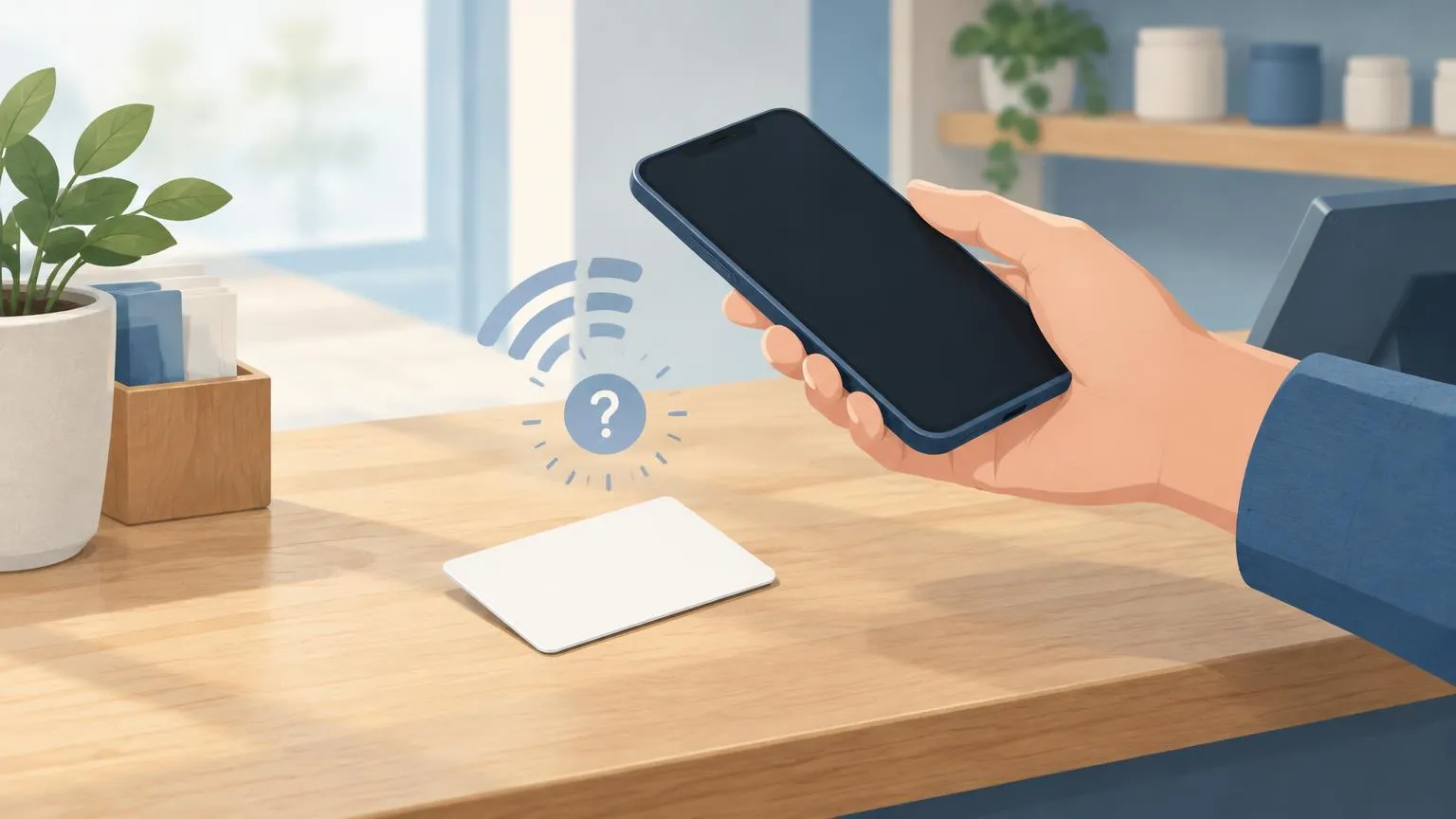
An NFC review card that is not working is almost always one of five problems: the phone cannot read NFC or has it switched off, the card is held in the wrong spot, a case or metal surface is blocking the signal, the chip is blank, locked or damaged, or the link written to it is wrong. Work through them in that order and you will find the cause in a couple of minutes.
How do you tell whether the problem is the phone, the card or the link?
Look at what happens when you tap. Nothing at all points to the phone, the position or something blocking the signal. A notification that opens the wrong page points to the link. An empty-tag message points to the chip.
| What you see | Most likely cause | Start here |
|---|---|---|
| Nothing happens on any phone | Chip damaged, blank, or card on metal | Chip and surface checks |
| Nothing happens on one phone only | NFC off, unsupported model, wrong position, thick case | Phone checks |
| Banner or notification appears but nobody taps it | Normal behavior on iPhone and Android 17 | Staff briefing |
| Link opens but the wrong business or a search page loads | Wrong or broken review link on the chip | Link checks |
| Phone says the tag is empty | Card was never programmed | Reprogram or replace |
| Phone says the tag is read-only when you try to rewrite it | Chip was locked after writing | Replace the card |
Is the phone able to read NFC at all?
Check the phone before you blame the card. On iPhone, Apple's developer documentation states that iPhone XS and later support background tag reading, which means the phone scans for tags whenever it is in use and shows a pop-up notification without any app open. Apple's support guide lists iPhone 7, 7 Plus, 8, 8 Plus and X as models where the user has to turn on the NFC Tag Reader control in Control Center first. Anything older than iPhone 7 cannot read tags.
On Android, NFC is a setting that can be switched off. Google's own help page for Pixel phones puts it under Settings, Connected devices, Connection preferences, NFC, with a Use NFC toggle, and adds that if you do not see the NFC setting, the phone does not have NFC. Other manufacturers use different menus, so searching the Settings app for NFC is the quickest way to find the toggle.
A phone that reads NFC for contactless payments can read a review card. If a customer taps to pay with their phone, the hardware is there; the only question is whether NFC is enabled and the phone is held in the right place.
Why does an iPhone sometimes ignore an NFC review card?
Because Apple deliberately pauses background reading in several situations. According to Apple's Core NFC documentation, background tag reading only happens while the iPhone is in use, and it is unavailable even with the display on when the device has never been unlocked since it restarted, when another NFC reader session is running, when Apple Pay Wallet is in use, when the camera is open, or when Airplane Mode is on.
- Camera open: a customer who has just scanned a QR code with the Camera app gets no NFC banner until they close it.
- Wallet open: right after paying with Apple Pay the Wallet sheet is still active, so the tap does nothing.
- Restarted but not yet unlocked: the phone will not read tags until it has been unlocked once.
- Locked screen: Apple's documentation says the system asks the user to unlock before handing over the tag data, so the banner can appear but the link waits.
None of these are faults with the card. Tell staff to ask the customer to close the camera, finish paying, then tap with the phone unlocked.
Why does an Android phone not open the link from the card?
Usually because NFC is off, the screen is locked, or the phone showed a notification that nobody noticed. Google's Android developer documentation says Android devices are usually looking for NFC tags when the screen is unlocked, unless NFC has been disabled in Settings.
Recent Android versions have also changed what a tap looks like. The same documentation states that starting in Android 16, scanning a tag that stores an http or https link triggers a standard view intent, and that beginning with Android 17 the phone surfaces an open-link notification that requires the user to tap it before the link opens. On the newest phones a card that seems to do nothing may simply have posted a notification. Pull down the shade and look.
Confirm NFC is on. On Android search Settings for NFC and turn on the toggle; on iPhone 7 to X open Control Center and tap NFC Tag Reader.
Unlock the phone, close the camera and any payment app, and leave the home screen showing.
Hold the top edge of an iPhone, or the upper back of an Android phone, flat against the card and keep still for one to two seconds.
Look for a banner at the top of the screen and tap it. On Android 17 the open-link notification needs that tap.
If nothing appears, slide the phone slowly across the card. The antenna in a small card is only a few centimeters wide and the phone's antenna has to overlap it.
Repeat on a second phone, ideally one iPhone and one Android. If both fail with the card held in free air, the problem is the card, not the phones.
Is the card being held in the right place?
The phone's NFC antenna is small and in a fixed place, so where you touch the card matters. On iPhones it sits at the top edge near the cameras; on most Android phones it is in the upper or middle part of the back. A card pressed against the bottom of either phone will not be read.
Pressing harder does not help; moving does. NXP, which makes the NTAG chips used in most review cards, rates the operating distance at up to 100 mm depending on field strength and antenna geometry, but in practice a phone needs to be within a few centimeters and well aligned with the card's antenna. Slide the phone across the card rather than jabbing one spot. On a stand or plaque, the chip is usually behind the printed tap icon.
Is a case, wallet or metal surface blocking the card?
Metal is the main enemy of NFC. A card placed directly on a stainless steel counter, a metal till or a fridge door often will not read at all, because the metal detunes the small antenna in the card. On the phone side, a metal or wallet-style case, a magnetic mount plate or a thick rugged case shortens the working distance, sometimes to zero.
- Lift the card off the surface and tap it in free air. If it works there, the surface is the problem.
- Use a stand, which raises the chip off the counter, or a card with a ferrite backing designed for metal surfaces. Our stand vs plaque vs sticker guide covers which display suits which surface.
- Keep the card away from other NFC items. A card stacked on a payment terminal, a key fob or a second NFC card can confuse the read.
- Ask the customer to remove a wallet case, or to tap with the top of the phone where the case is thinnest.
Is the chip itself blank, locked or damaged?
If two different phones fail with the card in free air, suspect the chip. Either the card was never programmed, so the phone reports an empty tag; it was programmed and then locked with a typo in the link, which cannot be undone; or the chip or its antenna has been damaged by bending, cutting or a hole punch.
NTAG chips are robust in normal use. NXP rates them for ten years of data retention and 100,000 write cycles, so a card does not wear out from customers tapping it; reading is not writing. What kills a card is damage to the hair-thin antenna coil around the edge of the chip.
A free NFC reading app, such as NFC Tools on Android or iOS, tells you which you have. If it shows a URL record, the chip is fine and the problem is the link. If it reports an empty tag, write the link following our guide to programming an NFC tag with your review link. If it detects no tag on two phones, the card needs replacing. NXP's chips also support a permanent read-only lock and a 32-bit password; a card that reports itself as read-only when you try to rewrite it has been locked, and the only fix is a new card.
Never punch a hole in an NFC card or trim its edges to fit a lanyard or holder. The antenna runs around the perimeter, and cutting through it leaves a card that looks fine but reads on nothing.
Is the review link on the card wrong?
When the tap works but the wrong thing opens, the link is the problem. Common mistakes are a business name typed in front of the URL, https:// pasted twice, a link copied from a search results page rather than the review form, or a Place ID for a duplicate listing. Read the card with an NFC app, copy the URL it shows, and open it in a private browser window.
What should open is Google's review form for your business, with the correct name and address at the top. Google's Business Profile Help confirms that customers must be signed in to a Google Account to leave a review, so a sign-in prompt before the form is normal and not a fault. If it opens a map, a search page or another business, copy the correct link again using our guide to finding your Google review link and rewrite the card. If the link went through a third-party shortener that has expired, every card using it is dead until rewritten.
What if the card works but customers still say it does not?
Then the fix is presentation, not hardware. Customers do not know where their phone's antenna is, do not expect a notification, and often tap with the camera open because they assumed it was a QR code. A card with both an NFC chip and a printed QR code removes most of these conversations. Our comparison of NFC and QR review cards explains why having both on one item matters.
A pre-programmed Google Review Card arrives with the chip already written with your review link, an optional printed QR code as the fallback, a one-off price with no subscription, and tracked delivery, so the programming mistakes above are taken care of before it reaches the counter. Whatever card you use, give staff a one-line script: unlock your phone, hold the top of it on the card, tap the banner. Keep the card on a stand or a non-metal spot by the till, and test it on an iPhone and an Android phone once a week.
The rules do not change because the request comes from a tap. Ask every customer the same way, never offer anything in exchange for a review, and let customers choose their own rating. Google's Business Profile Help states that offering incentives for reviews is prohibited. Our Google review policy guide and the rest of the NFC review products hub cover the details.
❓ Frequently asked questions
Why does my NFC review card work on Android but not on iPhone?
Usually because the iPhone is older than an XS, which is the first model with background tag reading, or because the camera, Wallet or Airplane Mode is active. On iPhone 7 to X the customer has to open the NFC Tag Reader control in Control Center first. Hold the top edge of the iPhone on the card with the phone unlocked.
Why does nothing happen when I tap the card with a new Android phone?
Check for a notification. Google's Android documentation says that from Android 17 a tag with a web link shows an open-link notification that the user must tap before the link opens. Also make sure NFC is on in Settings and the screen is unlocked.
Does an NFC review card wear out from being tapped?
No. Tapping reads the chip; it does not write to it. NXP rates NTAG chips for ten years of data retention and 100,000 write cycles. Cards fail from physical damage to the antenna, from being placed on metal, or from being locked with a wrong link, not from use.
Can I fix an NFC review card that has the wrong link?
Yes, if the chip was not locked. Use a free NFC writing app to write a new URL record with the correct review link; it replaces the old one. If the app reports the tag is read-only, the card was locked and must be replaced.
Why does my review card not work on the counter but works in my hand?
The counter is probably metal, or has metal underneath the surface. Metal detunes the card's antenna. Move the card to a wood, plastic or glass spot, use a stand that lifts it off the surface, or use a card with a ferrite backing made for metal.
Sources
- Apple Developer Documentation: Adding Support for Background Tag Reading
- Apple Support: iPhone models that need NFC Tag Reader in Control Center
- Android Developers: NFC basics
- Google Pixel Help: Turn on NFC
- NXP Semiconductors: NTAG 213/215/216 product page
- Google Business Profile Help: Get reviews on Google
Related articles
How to Program an NFC Tag With Your Google Review Link
A blank NFC tag, a phone and a free writing app are all you need to turn a tap into a Google review. Here is the exact process, the chip to buy and the mistakes to avoid.
Google Review Stand vs Plaque vs Sticker: Which Display Should You Buy?
Stands, plaques and stickers all open the same Google review form. The right one depends on where customers pause, what surface you have and how many spots you need to cover.
Google Review QR Code: How to Make, Print and Test One
A Google review QR code takes customers straight to your review form. Here is how to make one for free, how big to print it, and how to test it first.