Multi-Location Google Reviews: How to Collect and Manage Reviews for Every Branch
Key facts
- Where reviews live
- On each location's own Google Business Profile, never pooled by brand
- Shared access
- Business groups let a team manage many profiles without sharing one login
- Bulk tools
- Google offers bulk upload and verification from 10 or more locations
- Who can reply
- Owners and managers of each profile can respond to reviews
- Not allowed
- Review quotas for staff, incentives and selectively asking happy customers
Reviews live on each branch's own Business Profile, not on the brand. Here is how to structure accounts, give every location its own review link and keep replies consistent without a shared password.
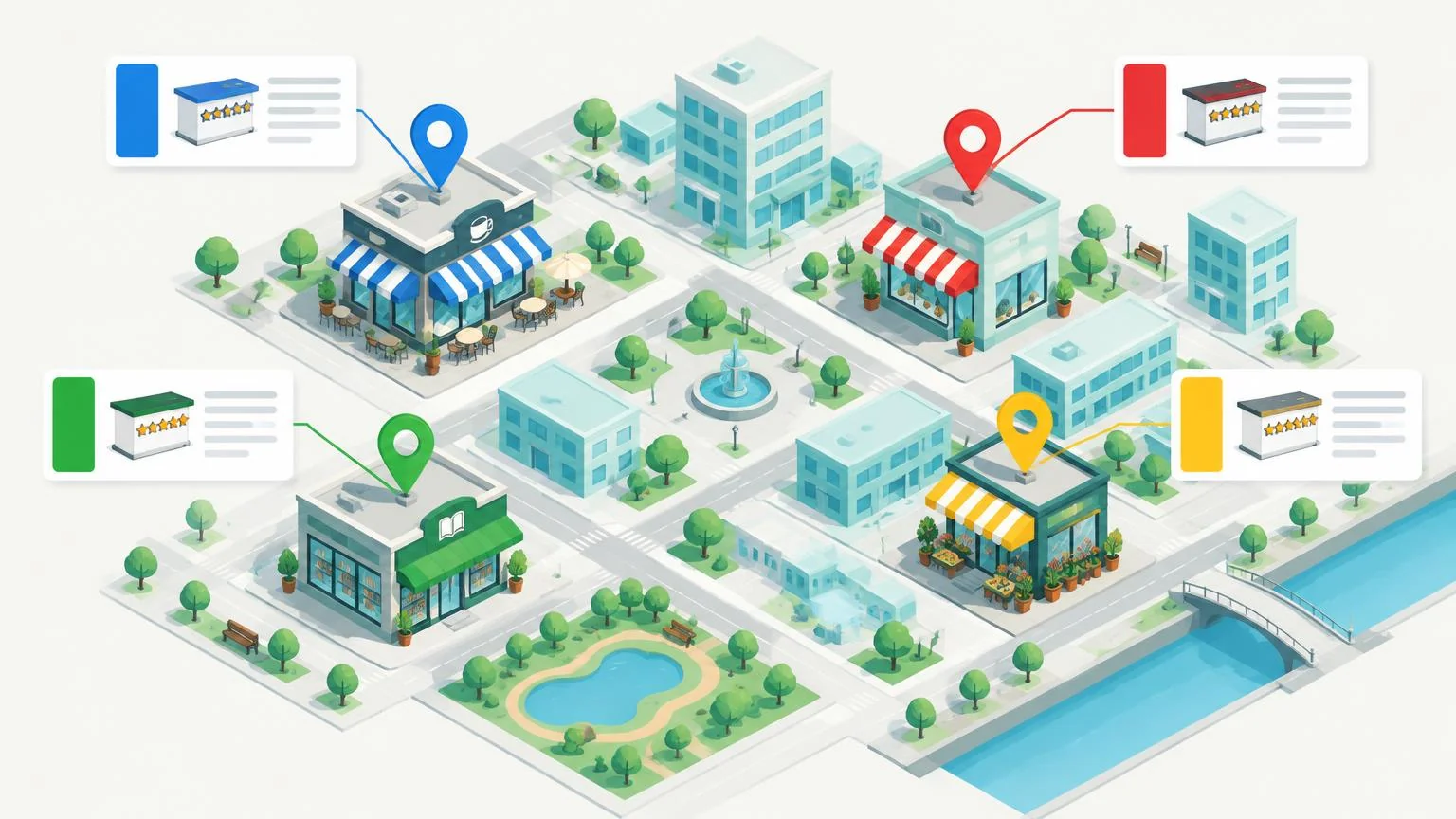
Multi-location Google reviews work branch by branch: every location has its own Google Business Profile, its own rating and its own review link. There is no brand-level rating that averages them. So the job is to give each branch a way to ask, keep access organized through business groups and user roles, and reply in one consistent voice.
Why do multi-location businesses struggle with Google reviews?
Because reviews are counted per profile, a chain with twelve branches has twelve separate reputations. Your flagship might sit at 4.8 with hundreds of reviews while a newer branch three miles away shows 3.9 from a handful. Customers searching near that second branch see the weak listing, not the strong one.
Google's own guidance on local ranking says results are based mainly on relevance, distance and prominence, and that "more reviews and positive ratings can help your business's local ranking." Prominence is judged for the listing a customer is near, which is why a branch with few reviews can be outranked by an independent competitor on the same street, whatever the brand's overall reputation. Our guide to how reviews affect local SEO covers the ranking side in more depth.
The other common problems are organizational. One shared login for every branch, nobody sure who should reply, and a review link that points to head office rather than the branch the customer actually visited.
How should you structure Google Business Profiles for multiple locations?
Use one verified profile per physical location, hold them in a business group, and add people to the group or to individual profiles by role instead of sharing a password. Google describes business groups as "a more secure way to manage and share access to your Business Profiles with co-workers."
Create or claim a separate Business Profile for every branch with its own address, phone number and opening hours. Do not fold several branches into one listing.
In Business Profile Manager, create a business group and move the branch profiles into it. Google recommends keeping to one group per business or brand.
Add head-office staff as owners or managers of the group. Anyone added to the group gets access to every current and future profile in it.
Add branch managers to their own profile only, as a manager, so they can reply to reviews for their branch without seeing the others.
If you have 10 or more locations, use Google's bulk upload spreadsheet and the bulk (chain) verification route rather than verifying each profile one at a time.
| Role | Reply to reviews | Edit profile info | Add or remove users |
|---|---|---|---|
| Primary owner | Yes | Yes | Yes (only one per profile) |
| Owner | Yes | Yes | Yes |
| Manager | Yes | Yes | No |
Google's roles page states that a manager has nearly the same access as an owner, except that "they can't add or remove users or remove the profile." That makes manager the right role for branch staff: they can reply, update hours and post photos, but they cannot lock head office out or hand access to someone else.
Bulk verification is only available when your spreadsheet contains 10 or more profiles from the same business, and duplicate, suspended or disabled profiles do not count toward that minimum. Agencies managing several different businesses in one account cannot bulk verify.
Does each location need its own Google review link?
Yes. Each profile has its own review link and QR code, and a review submitted through the wrong link lands on the wrong branch. The link is copied from the profile under Read reviews, then Get more reviews, and Google states that review QR codes can currently be generated on a computer browser only. Our step-by-step guide to finding your Google review link shows where each option sits.
Keep a simple register: branch name, Place ID, review link and the date the link was last tested. It stops the most common multi-site mistake, which is printing the flagship's link on material that goes to every branch.
- Name every printed item with the branch it belongs to, so a stand that moves between sites gets spotted.
- Give mobile staff who work from several branches a tag per branch, or one tag that they only use at their home site.
- Re-test every link after a profile merge, a move, a rebrand or a change of primary owner.
- When a branch closes, mark the profile as permanently closed and withdraw its cards and signage. Do not point its link at another branch.
How do you get reviews consistently across every branch?
Give every branch the same simple moment to ask, the same wording and the same physical prompt, then measure each branch on whether the ask happens, not on how many reviews come in. Google's policy prohibits "merchants requesting that staff solicit a certain number of reviews," so a per-branch review target is a policy risk as well as an incentive for shortcuts.
A workable playbook has three parts, and each is covered in more depth in our getting Google reviews hub. First, the moment: at payment, at handover of the finished job, or when the customer says thank you. Our guide on when to ask for a Google review walks through choosing that moment for different trades. Second, the words: one or two sentences every team member uses, drawn from a shared review request template. Third, the prompt: something physical at the counter or in the technician's hand that opens the right branch's review form.
This is where printed products earn their place in a multi-site rollout. An NFC Google review card or counter stand arrives pre-programmed with one branch's review link and carries an optional printed QR code for phones without NFC. Because it is a one-off purchase with no subscription, head office can order a batch, label each unit with its branch, and ship them out knowing every tap lands on the correct profile. Ordering per branch is covered in our guide to bulk review card orders for teams.
| Branch type | Practical prompt | Why |
|---|---|---|
| Retail shop or café with a counter | Counter stand or window sticker | Customer is already waiting with a phone in hand |
| Clinic, salon or office with reception | Desk plaque at checkout | Fixed position, no staff action needed |
| Mobile technicians working from a depot | Keychain or card per technician | The ask happens at the customer's door, not in the branch |
| Events, gyms and venues | Wristband or card at the exit | High footfall, short interaction |
Ask every customer the same way. Google's policy does not allow businesses to "discourage or prohibit negative reviews, or selectively solicit positive reviews from customers," and it prohibits incentives of any kind in exchange for a review. Those rules apply at every branch, not just head office.
Who should respond to reviews: head office or the branch?
The branch should reply, within a shared policy that head office writes. Local managers know what happened on the day and can fix it. Head office sets tone, response times and the point at which a complaint is escalated.
- Write a one-page response policy: tone, target response time, what never goes in a public reply (no customer personal details, no arguing), and when to escalate.
- Give branches a small set of reply starters rather than full scripts, so replies read as written by a person at that location. Our guide to responding to Google reviews has worked examples.
- Have head office read every one- and two-star review weekly across the group. Patterns that repeat across branches are an operations problem, not a review problem.
- Log which reviews each branch has replied to. A branch that stops replying is usually a branch where the manager role was never set up or the person has left.
- Report reviews that break Google's policy through the profile, and let the branch know it has been done so they do not reply to a review that is likely to be removed.
What rules apply when staff work across several branches?
The rules are the same as for a single site, but the number of people involved makes slips more likely. Google's Maps user-contributed content policy prohibits content "based on a conflict of interest," which the policy says may include current or former employment, so staff must not review any branch of the business, including one they do not work at. Regional managers who visit many sites are still employees.
The same policy bars posting the same content multiple times from one or more accounts, and content "posted from multiple accounts by or at the request of one person." A head-office campaign that asks friends of the business to review each branch would fall foul of both rules. Our guide on whether employees can leave Google reviews sets out where the line sits.
Finally, keep profile information consistent and accurate across every branch. Google's bulk verification page notes that profiles added to an account "must accurately reflect the size of your business," and that accounts can be de-verified if profiles are not actively managed. A branch listing with the wrong hours or an old phone number collects reviews about the confusion rather than the service.
This article explains Google's published policies and help documentation as a general guide. It is not legal advice. Check your local consumer and advertising rules, and the current Google policy pages linked in the sources, before you roll out a review program.
❓ Frequently asked questions
Can one Google Business Profile cover several locations?
No. Each physical location needs its own verified profile with its own address and hours. Reviews, ratings and the review link are all attached to that individual profile, not to the brand.
How many locations do you need for Google's bulk management tools?
Google's bulk upload and bulk verification are for businesses with 10 or more locations. Your spreadsheet must list every profile you manage, and duplicate, suspended or disabled profiles do not count toward the minimum.
Can a branch manager reply to reviews without seeing other branches?
Yes. Add them as a manager on their own profile rather than on the business group. Managers can reply to reviews and edit profile details but cannot add or remove users or remove the profile.
Is it allowed to set a review target for each branch?
No. Google's content policy prohibits merchants from requesting that staff solicit a certain number of reviews. Measure whether the ask is happening instead, and keep the ask the same for every customer.
Do I need a separate review card or stand for each branch?
Yes, because each branch has a different review link. A card or stand is programmed with one link, so a unit that moves to another branch will send reviews to the wrong profile unless it is reprogrammed.
Sources
- Google Business Profile Help: About business groups
- Google Business Profile Help: Business Profile user roles
- Google Business Profile Help: Verify Business Profiles in bulk
- Google Business Profile Help: Bulk location management overview
- Google Business Profile Help: How to improve your local ranking on Google
- Google Business Profile Help: Get reviews on Google
- Google Maps user-contributed content policy
Related articles
How to Find Your Google Review Link (and Share It Properly)
Your Google review link opens the review form for your business in one click. Here is where to get it, how to build it by hand, and how to check it works.
Bulk Google Review Cards for Team Orders
Bulk Google review cards should be ordered around users, locations and tested destinations, not an assumed review target. This store applies volume discounts to eligible total cart quantity. Reseller membership is a separate lifetime purchase with a replacement discount, not an extra stacked saving. Keep every branch’s printed identity paired with its own link.
Can Employees Leave Google Reviews for Your Business?
Employees should not leave Google reviews for the business they work for. Here is what Google's conflict-of-interest policy and the FTC's Consumer Review Rule say, and the safe way to grow your reviews.